Not sure where to start with gaming news and guides? Begin with your screen and your delay: refresh rate, response time and input lag decide how a game feels to you, and this hub links each guide.
| Item | Value |
|---|---|
| Gap between frames on a 60Hz screen | 16.66ms |
| Gap between frames on a 120Hz screen | 8.33ms |
| 360Hz panel versus 240Hz panel (NVIDIA, September 2020) | 50% refresh rate boost |
| G-SYNC variable refresh range (NVIDIA, September 2020) | 1Hz to 360Hz |
These figures come from PC Monitors’ responsiveness guide and NVIDIA’s G-SYNC 360Hz announcement, dated September 2020. Specs and product details can change, so check the source before you rely on them.
Refresh rate and frame rate: the basics
Refresh rate is how often a screen updates its image, and it is measured in hertz. Each refresh is one frame, so more refreshes per second should look smoother, at least in theory, according to CG Director’s monitor guide.
Frame rate is a separate number. In that guide’s wording, refresh rate refers to the monitor’s refreshes, while frame rate refers to the game’s. If the game produces more frames than the screen can show, you get screen tearing.
For a plain-language primer on the first of those numbers, read the explainer on what is refresh rate.
The gap between frames shrinks as refresh rate rises. On a 60Hz screen there is a 16.66ms gap between frames, and a 120Hz screen has an 8.33ms gap, according to PC Monitors. The same guide notes that the 120Hz monitor also responds twice as frequently to updates such as mouse movements.
A faster screen only helps when the game can feed it. CG Director points out that a game programmed for 60 FPS and no higher makes no difference on a 144 Hz monitor compared with the same monitor at 60 Hz, so check what your games can actually output before you pay for speed.
Gaming guides to response time, input lag and settings
These two terms get mixed up constantly. Input lag is the delay between your inputs and the action playing out on screen, while response time is the time it takes pixels to shift from one colour to another. CG Director says the response time spec affects blur rather than input latency.
For response time, CG Director says a figure of 5 ms or lower gives a perfectly fine viewing and gaming experience. Manufacturer specifications rarely paint the full picture, as PC Monitors argues. It also warns that a few milliseconds of difference can fall within the measurement method’s margin of error.
Where does the lag come from? Not all of it is the display. Some higher-end screens use internal scalers for non-native resolutions, which can add significant input lag, and some monitors offer a dedicated mode that bypasses much of the signal processing. Gamepads and mice with high input lag can also be a problem, says CG Director.
CG Director’s guide lists these settings for low-latency play:
- Meet or exceed your monitor’s native refresh rate whenever possible.
- Disable triple buffering and V-Sync, and run in exclusive fullscreen.
- Use low-latency modes if you would rather not use frame rate caps.
- Enable Game Mode on your display.
Measuring is also getting easier. NVIDIA’s September 2020 announcement introduced the Reflex Latency Analyzer, billed as the first in-display latency measurement tool. It detects mouse clicks and measures how long the resulting pixels take to change on screen.
For a step-by-step approach to trimming delay on your own setup, see how to reduce input lag.
Variable refresh rate and G-SYNC explained
Variable refresh rate (VRR) exists because of a trade-off. With VSync off, the GPU sends frames as soon as they are ready and you see tearing. With VSync on, the GPU holds each frame until the monitor is ready, which removes tearing but increases input lag, according to PC Monitors’ G-SYNC explainer.
G-SYNC lets the monitor adjust in real time to the game’s frame rate, to a refresh rate as low as an advertised 1Hz. NVIDIA’s own September 2020 announcement says variable refresh is supported from 1Hz all the way up to 360Hz on its 360Hz displays.
The same PC Monitors explainer says G-SYNC needs an Nvidia GPU from the GeForce GTX 650 Ti Boost upward, and it is proprietary and not compatible with AMD GPUs. It also notes that, as of 2024, the full functionality of the G-SYNC module has been incorporated into certain MediaTek scalers.
What about the top of the range? Some players use a frame rate cap just below the ceiling, such as 141fps on a 144Hz monitor, so G-SYNC stays active and VSync does not kick in. The explainer also says the technique adds very little latency compared with VSync off, perhaps 1-2ms.
What NVIDIA’s 360Hz displays added
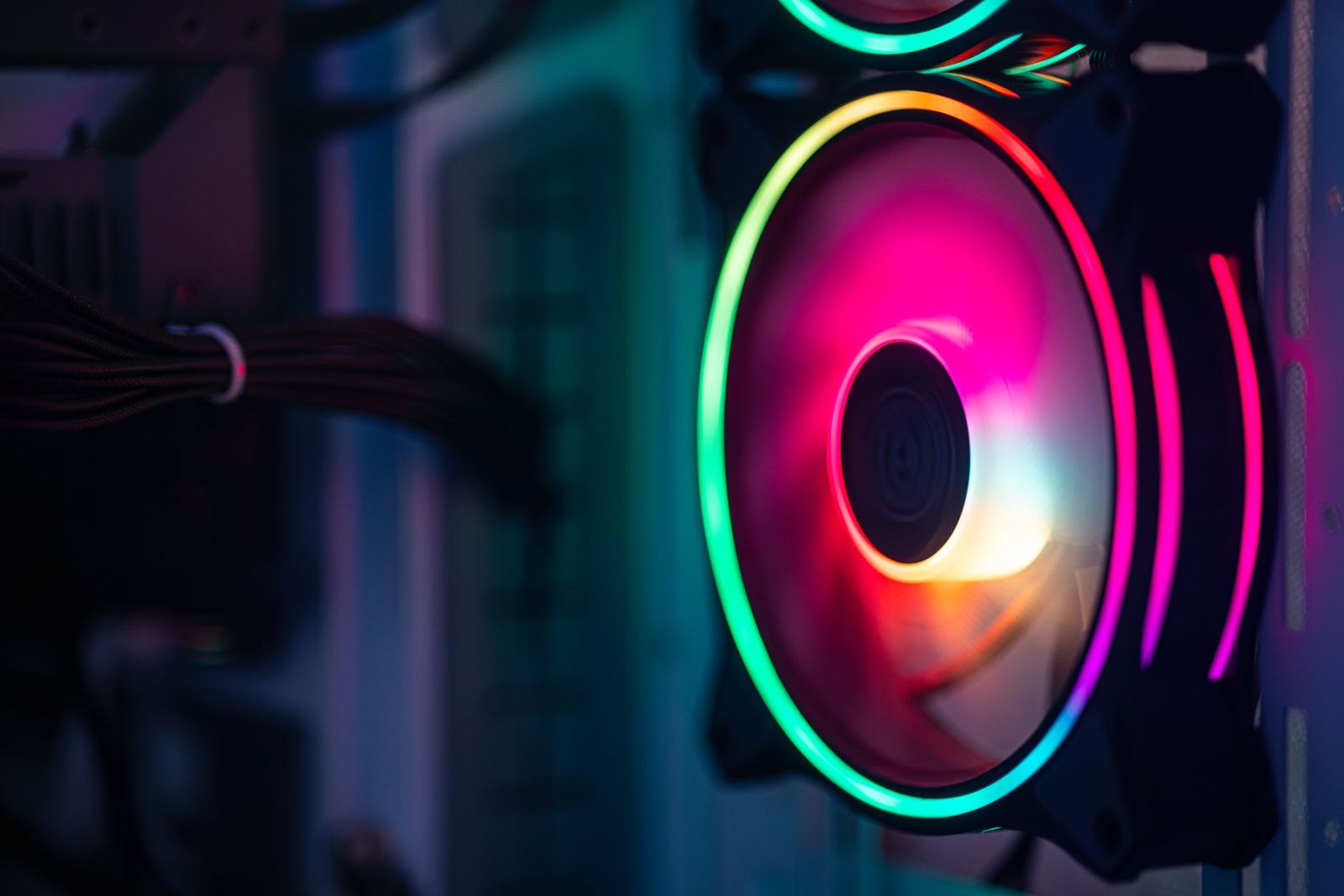
In September 2020, NVIDIA described 360Hz panels as the world’s fastest for esports, a 50% refresh rate boost over 240Hz competitive displays. That claim reflects the date of the source, so treat it as history rather than a current ranking.
- G-SYNC Esports Mode: a preset that turns off variable backlight for the lowest latency.
- 240Hz ULMB: an Ultra Low Motion Blur mode described as twice as fast as prior ULMB modes.
- Dual-driver IPS: an answer to the old trade-off in which TN panels were fast but gave up colour fidelity.
All three are described in NVIDIA’s announcement, so read them as vendor claims.
How to read monitor specs and HDR labels
Spec sheets reward a little scepticism. A May 9, 2026 article from KTC, a monitor maker, says a 240 Hz panel with slow pixel response can still produce visible blur. It adds that an HDR400 monitor often lacks the local dimming needed for meaningful contrast.
The same article points to ClearMR, a VESA standard that measures the ratio of clear to blurry pixels. It calls ClearMR 7000 the practical target for most competitive players and says the standard is more reliable across panel types than traditional 1 ms GtG claims. As a vendor article, it is a useful pointer rather than a neutral test.
On HDR, KTC says the VESA DisplayHDR 1.2 standard, updated in May 2024, requires 2D local dimming for all tiers at 1000 and above. That is a handy filter when a product page leans hard on an HDR badge.
A simple order of checks keeps you out of trouble:
- Decide what your games can actually output, then match refresh rate to it.
- Look past the headline response time and check for independent motion-clarity measurements.
- Confirm that the variable refresh feature works with your graphics hardware.
- Treat HDR labels with care and check the dimming requirements behind them.
The full buying walkthrough is in how to choose a gaming monitor.
Hardware, platform and industry guides
Screens are only one part of a gaming setup. This site is independent editorial and is not affiliated with any company named on this page. The guides below cover the other main decisions.
- If you are planning a new rig, the walkthrough on how to build a gaming pc covers the build.
- If you are weighing platforms, the comparison of console vs pc gaming lays out the trade-offs.
- If lighting effects confuse you, the explainer on what is ray tracing breaks the term down.
- If you would rather stream games than install them, read what is cloud gaming.
- If your pad has started to feel grubby, the guide on how to clean a game controller is for you.
For wider coverage, the technology news section follows industry stories beyond games. Phone and handheld players can browse mobile phones and gadgets for related coverage.
Frequently asked questions
Does a higher refresh rate always feel smoother?
Show answer
No. The game has to produce frames fast enough to use it. A game programmed for 60 FPS and no higher looks the same on a 144 Hz monitor as at 60 Hz, according to CG Director.
Is response time the same as input lag?
Show answer
No. Response time is how long pixels take to change colour and mainly affects blur. Input lag is the delay between your input and the action on screen, per CG Director.
Should I turn VSync on?
Show answer
VSync removes tearing but adds input lag, according to PC Monitors. Variable refresh rate avoids that trade-off if your monitor and graphics card support it.
What does G-SYNC need to work?
Show answer
A compatible monitor and an Nvidia GPU from the GeForce GTX 650 Ti Boost upward, per PC Monitors. Hardware support changes over time, so check the maker’s current documentation.
Can I trust the numbers on a spec sheet?
Show answer
Treat them with care. PC Monitors says manufacturer specifications never paint a true picture of responsiveness, so look for independent measurements as well.