Wondering how to build a gaming PC without damaging a part? Follow ten steps: ground yourself, fit the CPU and RAM, mount the board, add cooler, storage, GPU and power, then boot.
Looking for more? Browse our gaming news and guides for related reads.
| Item | Value |
|---|---|
| Steps in a typical build | 10 steps |
| Suggested GPU share of budget | 35-45% |
| Suggested CPU share of budget | 15-20% |
| Example budget build total (estimate) | About $600 |
| Example mid-range build total (estimate) | About $960 |
| Example mid-range build performance | 80-120 FPS at 1440p high/ultra |
The step count comes from Coolblue’s build guide, and the budget figures come from TechBench Pro’s guide. Prices and performance estimates change, so check the sources before you rely on them.
Plan your budget before you buy anything
The most important work happens before you touch a screwdriver. TechBench Pro’s guide, published March 24, 2026, says to plan around your budget, your target resolution and the games you play.
Its rule of thumb is to spend 35-45% of your budget on the GPU and 15-20% on the CPU. The rest is split among the motherboard, RAM, storage, power supply and case.
Your game library should steer the split. The same guide notes that competitive esports titles like CS2 and Valorant are CPU-dependent and run on modest hardware, while demanding AAA games need a strong GPU. If you play both, put your money into the GPU first.
The guide lists two example builds, with prices that it describes as estimated street prices as of March 2026:
- The $600 budget build totals about $600 and targets 70-100 FPS at 1080p high in most AAA titles.
- The $1000 sweet spot build totals about $960 and targets 80-120 FPS at 1440p high/ultra.
Check that your parts are compatible
According to TechBench Pro, the number one mistake first-time builders make is buying parts that don’t work together. Run through this checklist before you order.
| Check | What to verify | Common mistake |
|---|---|---|
| CPU and motherboard | The socket type matches | An AM4 CPU on an AM5 board |
| RAM and motherboard | DDR4 or DDR5 matches the board | DDR4 RAM on a DDR5 board |
| GPU length and case | The GPU fits within the case clearance | A triple-fan GPU in a mini-ITX case |
| Storage | The board has an M.2 slot for your drive | A PCIe Gen 5 SSD on a Gen 3 slot |
This checklist is drawn from the compatibility section of TechBench Pro’s guide, so check that source before you rely on it.
The socket check is the most basic one. The guide says your CPU and motherboard must share the same socket type, because a mismatch means the CPU physically will not fit.
As an example, the guide pairs AMD Ryzen 7000/9000 chips with the AM5 socket and DDR5 memory only. That was the guide’s data as of March 2026, so confirm your own parts on the maker’s spec pages.
How to build a gaming PC in ten steps
Coolblue’s guide, edited on 16 April 2025, splits the job into ten steps. It also says it is useful to install most components outside the case, so the motherboard becomes your workbench for the first few steps.
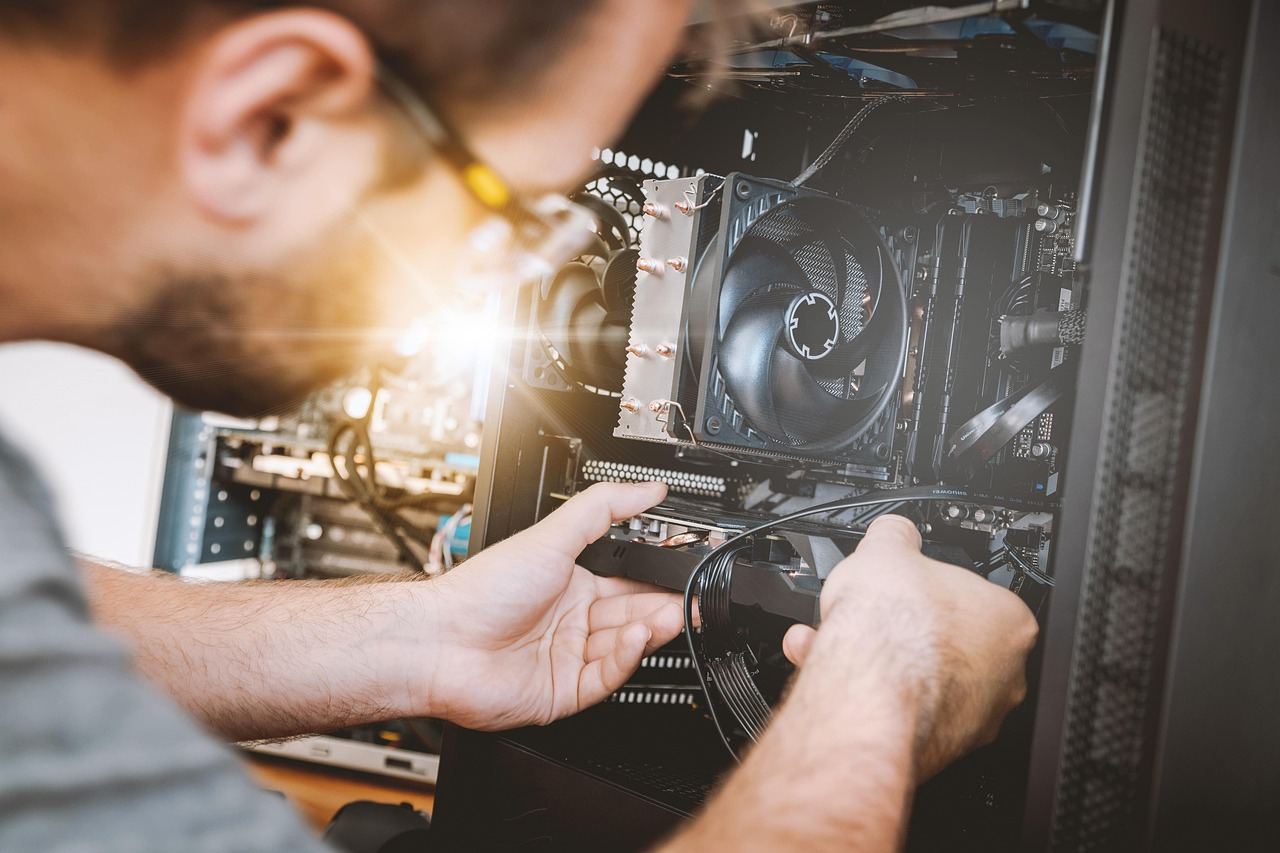
- Ground yourself. Wear an antistatic wrist strap clipped to a grounded object such as a radiator. With no strap, rub your hands on the radiator regularly to discharge static.
- Fit the processor. Place the CPU on the socket with the arrow at the top right, then close the lever. Get this wrong and the connectors on the processor will bend.
- Click in the RAM. The module only fits one way. When the switch clicks up, the RAM is seated properly.
- Mount the motherboard. Keep the connectors on the left side so they line up with the cutout in the case. Make sure the screw holes match too.
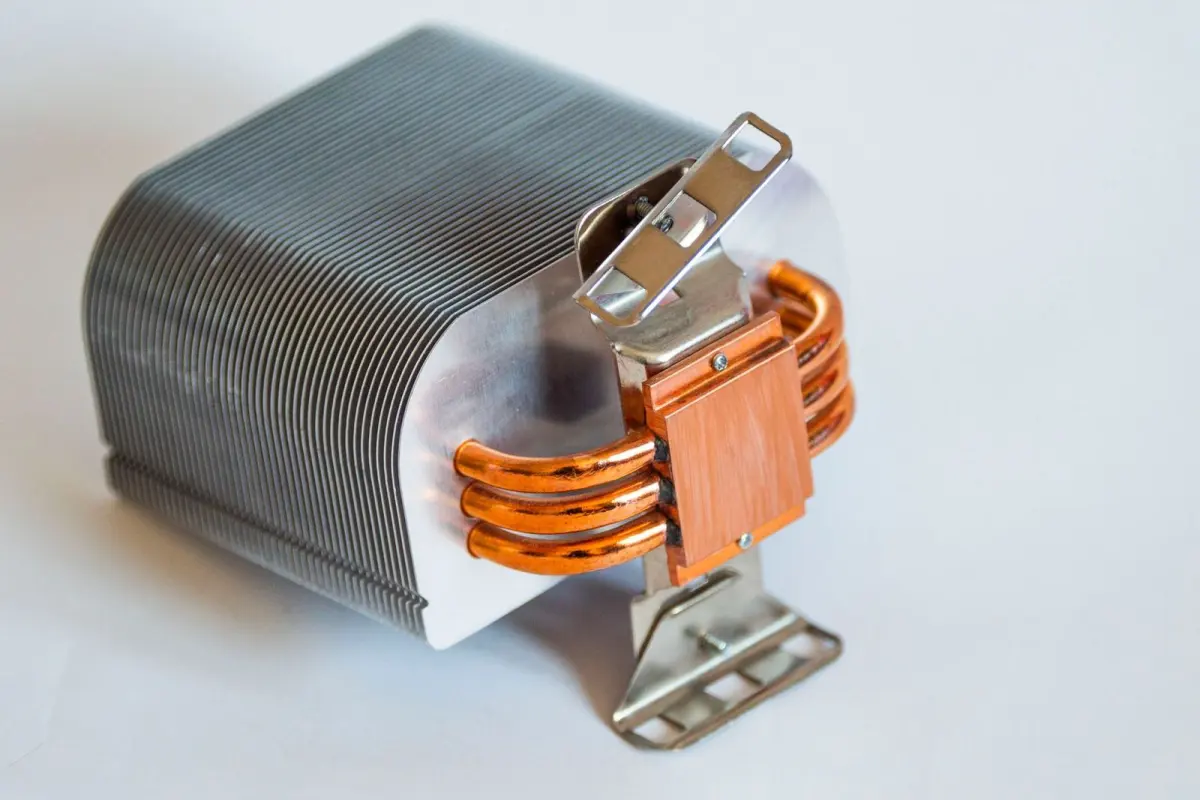
- Install the cooler and fans. Put a drop of thermal paste on the CPU before you fit the cooler. An air cooler is easier than a water cooler.
- Add storage. Slide an M.2 SSD into its motherboard slot, and check which key your board uses. That key decides which M.2 SSD you need.
- Install the video card. Pick the most powerful slot on the motherboard for the best performance. Screw the PCIe bracket back on so the card stays put.
- Connect the power supply. Start with the motherboard connector, which is the most important, and press every cable in firmly.
- Organize the cables. Bind the storage cables together, and do the same for the cooler cables.
- Boot up. Start the computer as usual and carry on with the remaining setup.
One order note: the guide says that if you have an air cooler, you should install it before you install the motherboard in the case. Check your cooler’s manual and your case layout before you commit.
Mistakes that can damage your build
Most build failures come from a few small slips. Watch for these:
- Static discharge: Coolblue warns that even a small static shock can damage components.
- Bent CPU connectors: these happen when the processor arrow is not at the top right of the socket.
- Loose power cables: Coolblue says a loose cable poses a short circuit risk.
- Mismatched parts: socket, memory type and case clearance are the usual culprits.
What should you do after the first boot?
Coolblue’s final step is simple: boot your computer as usual and get started with the remaining setup. TechBench Pro’s guide goes further, with sections on first boot setup and optimization, then testing your new build.
If you are tempted by a pricier GPU, read up on what is ray tracing to decide whether the feature is worth the extra money. Once your PC is running, a guide on how to clean a game controller helps keep the rest of your setup in shape.
Frequently asked questions
Do I really need an antistatic wrist strap?
Show answer
Coolblue says you should wear one, because even a small static shock can damage components. Without a strap, it suggests regularly rubbing your hands on a radiator to discharge static.
Which parts go on the motherboard before it goes in the case?
Show answer
Coolblue recommends installing most components outside the case, including the processor and the RAM. It also says an air cooler should go on before the motherboard is installed.
How much of my budget should go on the GPU?
Show answer
TechBench Pro’s rule of thumb is 35-45% of your budget on the GPU and 15-20% on the CPU. Treat it as a starting point, and adjust for the games you play.
Is building cheaper than buying a prebuilt PC?
Show answer
TechBench Pro’s guide argues that you get better performance per dollar than prebuilts, plus full control over every component. Prices vary by retailer and region, so compare current prices before you buy.